 NudgeLater
Keep NudgeLater at the top of Android's share sheet
A shortcut you have to hunt for is not a shortcut. Android’s share sheet reorders itself based on what you use, which is usually fine, but it can push an app you use once a day below the fold for no obvious reason. Pinning stops the shuffling.
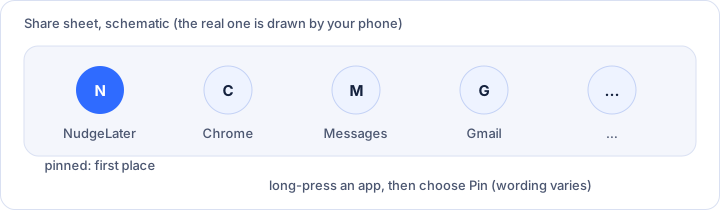
Pinning
- Open a share sheet from any app. In Chrome, that is the menu, then Share.
- Find NudgeLater in the row of apps. If you haven’t used it yet, share to it once first, so Android knows it exists as a target.
- Press and hold its icon.
- Choose Pin. The wording varies, and on some phones the option looks like a small pin icon.
From then on it stays in first position.
If there is no Pin option
Pinning depends on your Android version and on what your phone’s manufacturer did to the share sheet, so not every model has it. Two fallbacks:
- Use the app anyway. Android ranks targets by how often you pick them, so after a few days of sharing to NudgeLater it tends to climb by itself.
- Some phones let you edit or reorder the share sheet from a settings entry inside the sheet itself. It is worth a look if long-press does nothing.
If neither exists on your phone, the limit is the phone’s share sheet, not the app.
Checking that it appears everywhere
NudgeLater receives plain text and links, which is what most Share buttons send. Try it from a browser page, a YouTube video, a Reddit post and a place in Maps. If one app does not list NudgeLater at all, it is probably offering only images or files; the YouTube, Reddit and Maps article covers the workaround.
Try it on your phone
NudgeLater is free, takes two taps, and keeps everything on your device.