 NudgeLater
When a reminder shows up late or never: a four-step check on Android
A reminder you cannot trust is worse than not having one, because you stop keeping track of the thing yourself. Android itself is rarely the culprit. The usual causes are a switched-off permission, or battery management that is harder on background work than you’d expect, especially on some manufacturers’ phones.
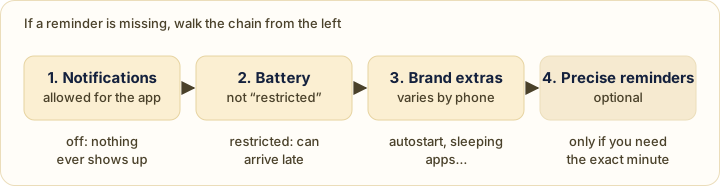
What the app already does
Reminders are kept on the phone and set up again after a restart, a clock change or a time-zone change, so none of those should lose one. By default they use Android’s battery-friendly scheduling, which is allowed to deliver a little after the time you picked. It is normally a matter of minutes. There is an optional setting for the exact minute, covered in step 4.
1. Notifications
Nothing else matters if notifications are off. Open Android’s Settings, go to Apps, NudgeLater, then Notifications. Both the main switch and the Reminders switch should be on. If you turned notifications down when the app asked for permission, this is where to change your mind.
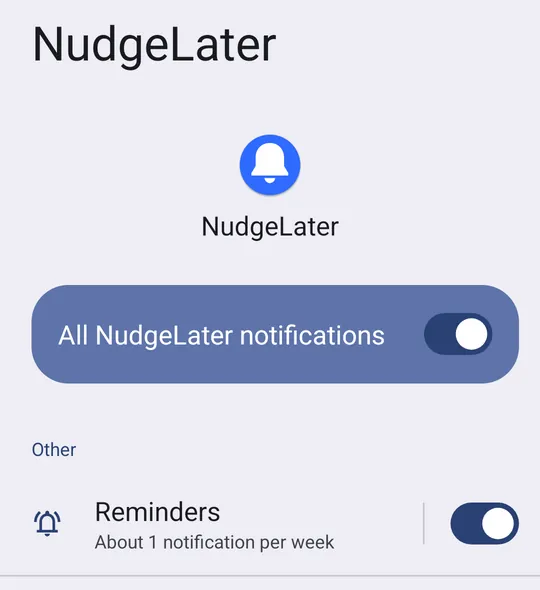
2. Battery restriction
Still on the app’s info page, open its battery entry. Names differ by Android version and brand, but the choices are of the same kind: something like unrestricted, optimized and restricted. Avoid Restricted, which can hold back background work altogether. Optimized is normally fine.
3. Manufacturer extras
Some manufacturers add their own layer on top of Android’s: lists of “sleeping” or “deep sleeping” apps, an autostart switch, a cleaner that closes apps in the background. They differ so much between brands and software versions that any one set of menu names goes out of date. If a reminder was missed on such a phone, look for exactly those things in the phone’s battery or app-management settings and make sure NudgeLater isn’t in a list of apps that are put to sleep or closed.
dontkillmyapp.com is an independent site that tracks these restrictions brand by brand and is kept more current than a page like this one.
4. Precise reminders
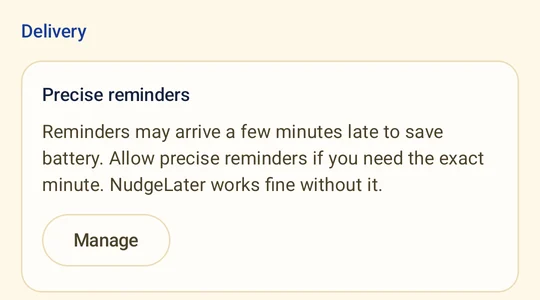
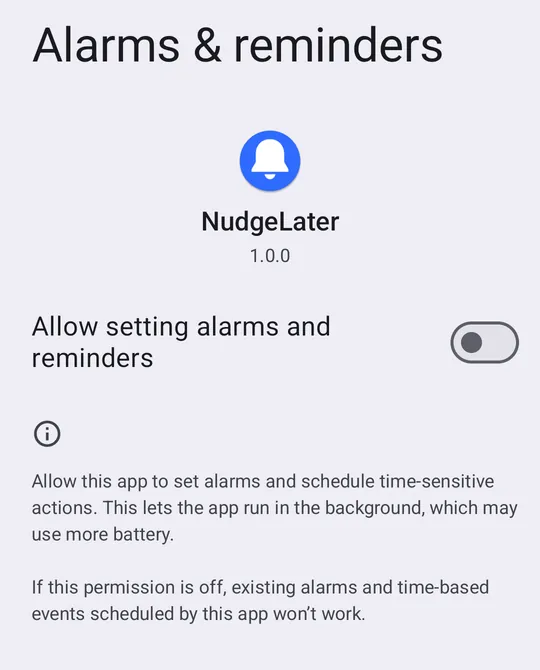
If a delay of a few minutes matters, for instance a reminder for a bus or a call, turn on Precise reminders. It is in NudgeLater’s Settings, under Delivery. The Manage button opens Android’s Alarms & reminders screen for the app, where you flip the switch yourself.
Test it
Share any link, choose Pick date & time, and set a moment five minutes ahead. Lock the phone and put it down. If the notification appears, in about that time, you’re set. If it does not, go back through the four steps in order.
Try it on your phone
NudgeLater is free, takes two taps, and keeps everything on your device.

Keep reading
Choosing an Android reminder app in 2026: start from what you keep forgetting
A short guide that sorts Android reminder apps by the job they do, with examples read from Google Play listings, and questions to ask before you install one.
NudgeLater, Remindly and RemindLink: three ways to say "check this later"
Three Android apps that turn a shared link into a reminder, compared from their public Google Play listings. What each is built for and where each one falls short.
Reminder apps with an account, and without: what changes
What an account buys you in a reminder app, what staying on the phone costs, and how to check what any app does with your data before you rely on it.